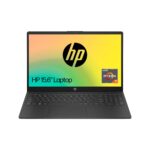

Microsoft Copilot+ AI-powered computers and Microsoft Paint
Hands On
The introduction of Microsoft’s Copilot+ AI PCs has ushered in a range of machine-learning-enhanced features, including a locally running image generator integrated into MS Paint that transforms your sketches into artwork. Yes, you read that correctly—MS Paint has become significantly more advanced! Say goodbye to rudimentary stick figures; now you can create genuine masterpieces from your doodles. Let’s explore what this development means for tech enthusiasts with creative ambitions.
An Introduction to Stable Diffusion & Auto1111
What Exactly is Stable Diffusion?
What’s all this excitement about “Stable Diffusion”? It’s essentially a high-quality image generator powered by AI. You provide it with a prompt, and it swiftly creates artwork for you faster than you can say “Geordie Shore.” This isn’t your traditional clip art; we’re talking about high-quality pieces suitable for framing or printing on a T-shirt. The best part? It runs on your own hardware, so there’s no need to send your data to an unknown server.
Auto1111 – Is It Worth The Effort?
If you’re anything like me—constantly experimenting with gadgets and gizmos—you might want to try Auto1111. It’s a web user interface for Stable Diffusion that simplifies the entire procedure. No need to fuss with command lines or obscure codes, just point and click. However, be aware that setting it up can be quite challenging if you’re not familiar with it. Nevertheless, once it’s operational, you’ll be producing AI-generated artworks like an expert.
Getting Started
Required Hardware
A good GPU is essential for this task. While you don’t need the latest high-end model, a powerful one will significantly simplify your work. Keep in mind that a faster GPU will deliver quicker results. Otherwise, you might find yourself waiting as long as a Toon fan for a championship win.
Software Setup
Firstly, download the Stable Diffusion model from their website, and then obtain Auto1111 from GitHub. Adhere strictly to the installation instructions, and everything should work perfectly. Ensure that Python is properly set up on your computer; otherwise, you may encounter significant difficulties.
Putting It To The Test
Creating Your Initial Image
Alright, everything is ready to go. Now it’s time to unleash your creativity. Launch Auto1111, load your Stable Diffusion model, and enter a prompt such as “Jack Russell Terrier lifting weights in a CrossFit gym.” Press “Generate” and see the magic unfold.
Tweaking The Settings
If the initial attempt isn’t impressive, try adjusting the settings. Modify the seed, alter the steps, or experiment with the guidance scale. It’s not complicated—think of it like brewing the perfect cup of tea. Continue experimenting until you find something you like.
Is it of good quality?
Listen, I’m not going to beat around the bush: Stable Diffusion and Auto1111 are remarkably impressive. The image quality is top-notch, and the range of styles you can create is immense. However, don’t anticipate every outcome to be a work of art. Occasionally, you’ll get some misses—much like Newcastle United’s transfer window acquisitions.
Summary
A picture is worth a thousand words… or was that a thousand TOPS?
If you’re eager to try your hand at DIY AI art and consider yourself an artist despite lacking traditional skills, then Stable Diffusion and Auto1111 are perfect for you. Just be sure to manage your expectations and have fun with the process—you might end up producing something surprisingly good!