

These days, smartphones are typically not discarded because they’re worn out.
More commonly, it’s the absence of software updates that pushes people to buy a new device: after a few years, your Android ceases to receive significant updates, security vulnerabilities remain exposed, and new applications require a more advanced operating system.
However, many older devices still possess enough capability for daily tasks. That’s where custom ROMs step in: they extend the lifespan of your phone, enhance security, and eliminate all that unnecessary manufacturer software. With new web installers available through your browser, getting started is incredibly straightforward – although, to be honest, the community is divided into two factions.
GrapheneOS provides the latest Android 17 for older Google Pixel devices, whereas the versatile LineageOS supports over 100 additional models featuring Android 16. LineageOS 23 introduces Google’s features to devices that manufacturers have abandoned. Behind the curtain, they are diligently working on LineageOS 24, which will be based on Android 17, but don’t expect a release date anytime soon – it will come when it’s ready.
LineageOS: Android 16 devoid of bloatware
LineageOS
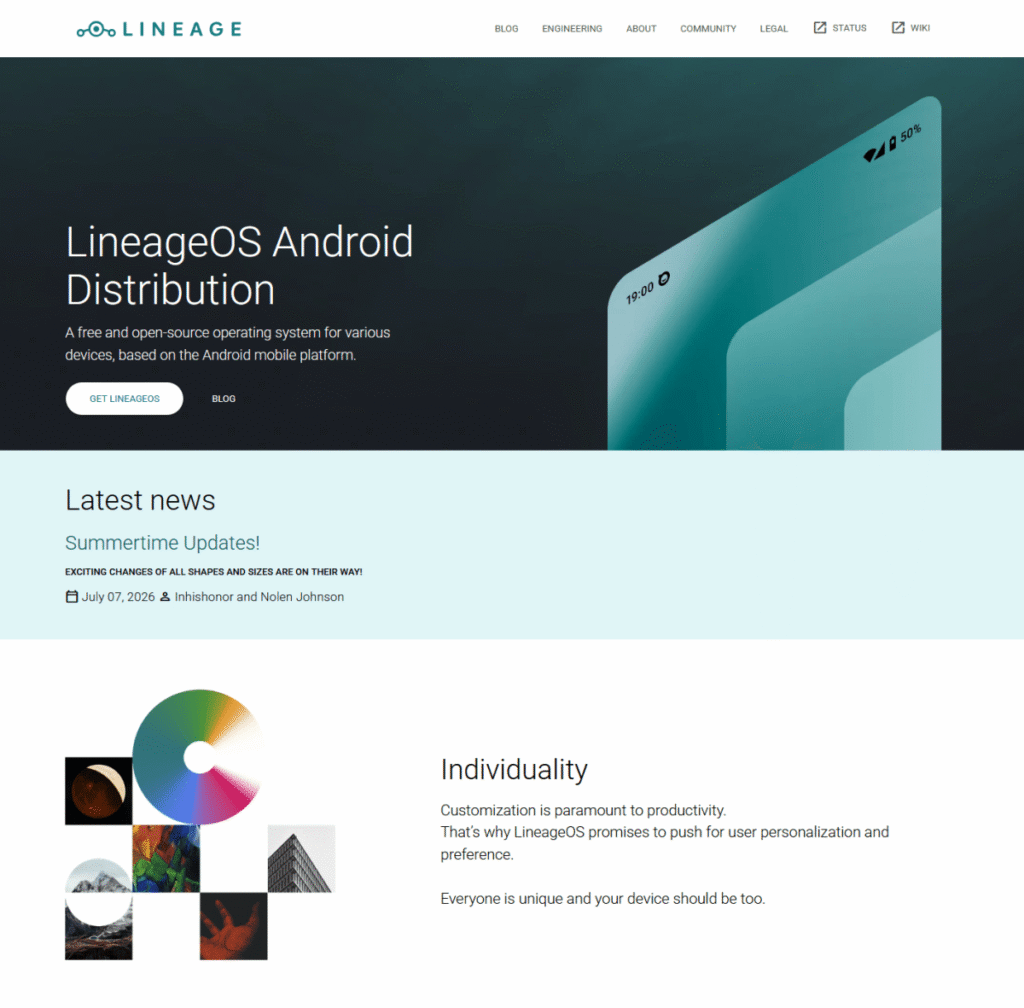
LineageOS is a custom Android operating system developed from the open-source Android code (AOSP), with the latest version, LineageOS 23, functioning on Android 16. It is not produced by a company, but rather by a worldwide community. The objective: to keep your phone functional for a longer period and provide you more oversight over it.
Initiated in 2016 as the successor to CyanogenMod, it is now one of the largest Android alternatives. It supports a multitude of smartphones and tablets from various manufacturers – including Samsung, Xiaomi, Motorola, Sony, OnePlus, and Google’s older models.
The primary advantage over the original software from most manufacturers is that LineageOS lacks any unwelcome apps, ads, or unnecessary services. You dictate what you want to have on your phone. Need Google services? There’s a package available for that. Wish to keep Google out of your life? That’s possible too.
Key advantages include:
- Current Android versions, even for older devices
- Frequent security updates
- Fewer pre-installed manufacturer applications
- Enhanced data privacy and control
- Multiple customization options
LineageOS is excellent for individuals who prefer to retain their smartphones longer rather than discarding a fully functional device simply because it no longer receives updates.
Modern Android versions introduce new features to older devices
Whether you’re utilizing LineageOS 23 on Android 16 or, as a Pixel enthusiast, already enjoying Android 17 via GrapheneOS (which LineageOS 24 will eventually support): upgrading from an older Android version brings more than just a revised number. These newer versions come with numerous enhancements in terms of security, usability, and efficiency for devices that manufacturers have long since abandoned.
Particularly, older phones benefit from reduced background processes and an optimized system, which can enhance performance and conserve battery – especially if the original software had become sluggish and bloated over time.
Users also receive the latest safety features and Android security updates. LineageOS consistently integrates these into their builds, striving to deliver improvements to older supported versions as well.
LineageOS
They’ve even revamped the update application. It now aligns more closely with Google’s current design style and displays the specified security level of the Android Security Bulletin prior to an update being installed.
This grants users a clearer understanding of what security enhancements accompany each update. Moreover, system updates are now streamed by default. This conserves the often-scarce storage space on older phones and accelerates the installation process.
Supported devices: Not every smartphone is compatible
A crucial step prior to installation: verify if your phone is compatible with LineageOS. Not all Android devices are ready for LineageOS.
You can locate the official device list on the LineageOS Wiki. It includes all compatible models, installation instructions, downloads, and device-specific advice.
LineageOS
Verify the specific model name. A Samsung Galaxy S20 isn’t automatically compatible with every S20 version. Manufacturers frequently release multiple versions of a phone featuring different processors or modems.
A wide array of older devices is currently supported. The real attraction is older phones that are still functionally sound but are no longer supported by their manufacturers.
Note on future upgrades: If you choose LineageOS 23 (Android 16) now, you won’t need to worry about losing your data when LineageOS 24 (Android 17) is released. Upgrading to a new major version typically doesn’t require a factory reset: instead, bypassing the automatic updater, simply install the new OS image manually once via the phone’s recovery environment (using ADB sideloading) – your apps, photos, and settings will remain intact.
Before installation: Points to consider
A custom ROM isn’t your typical app update. Installing it alters the complete system software of your smartphone, so prepare adequately with this checklist:
- Full data backup: Preserve your photos, videos, contacts, documents, and vital app data. Unlocking the bootloader typically erases your phone’s internal storage.
- Two-factor authentication (2FA): Reflect on your account security. If you utilize authenticator apps, save your recovery codes or migrate your accounts to another device beforehand.
- Unlocking the bootloader: To run third-party software, this manufacturer’s security measure must be lifted. The steps differ according to your phone model.
- Considering warranty and risks: Unlocking the bootloader may impact the manufacturer’s warranty or specific security features. For older devices, this may not be a significant concern – but it’s advisable to be informed beforehand.
Installing LineageOS: The web installer simplifies the process
Installing a custom ROM used to involve a lot of intricate steps: installing Android Platform Tools on your PC, entering cryptic commands into the command line, manually transferring files, and then loading recovery and system. The new, browser-based Lineage Flash Tools make this much easier.
Important to remember: The tool doesn’t auto-start when connected and doesn’t download files for you. You still need to download the appropriate OS image as usual.
The Lineage Flash Tools serve as a convenient alternative to the PC command line, which some users may find intimidating: Open the tool’s web interface in your browser, hook up your phone via WebUSB (compatible with Chrome or Edge) in one click, and you can upload the installation files directly to your phone through the browser window.
LineageOS
The new flashing tool supports various methods like Fastboot, ADB, and even Samsung’s Odin protocol for some devices. It’s much easier to embark on this task. Still, since the team is rolling out the feature gradually and each device has its own peculiarities, the web installer doesn’t wholly eliminate the traditional process: the initial manual bootloader unlocking is often still required.
Nevertheless, it’s not entirely straightforward. LineageOS supports numerous devices, each possessing unique features. Therefore, the official guides for each device on the LineageOS Wiki remain essential reads.
You’ll discover:
- which files are needed for your device
- how to unlock the bootloader
- which recovery environment to utilize
- whether you need any additional packages
Adhere to the instructions meticulously, and you’ll typically be fine. However, if you mismanage the files or steps, you might accidentally soft brick your device.
Practical advice for browser installation:
- Stop the local ADB: If you have the standard Android Developer Tools on your PC, you’ll need to run `adb kill-server` in your command line before employing the web tool to avoid conflicts.
- Fixing USB connection issues: Flashing demands a high data transfer rate. If the web installer crashes or loses connection with your device, refrain from using USB hubs, extension cables, or adapters. Connect your device directly to the PC, and if there’s an issue, try another USB cable or switch to a different USB port.
- Assistance with difficulties: If you’re still having trouble, the community has official support channels on Reddit, Discord, or the IRC channel (#LineageOS on Libera.Chat).
Google services or maximum independence?
Following installation, LineageOS initially boots without Google services. If you want access to the Play Store, Gmail, or Google Maps, you can install additional Google packages. A popular option is MindTheGapps, specifically tailored for LineageOS.
Alternatively, you could choose more privacy-centric options such as MicroG, or simply download applications from other sources and avoid Google altogether.
The right option depends on your personal preferences. Many find the combination of LineageOS and Google services the easiest route, while privacy advocates might select a different path.
GrapheneOS: The specialized solution for Pixel users (Android 17)
In addition to LineageOS, GrapheneOS is another well-known Android alternative. However, its approach is distinct: while LineageOS aims to support as many devices as possible, GrapheneOS focuses exclusively on Google Pixel smartphones.
Chris Martin / Foundy
This is made possible by the unique security features of the Pixel. GrapheneOS utilizes elements such as a secure boot process and hardware-based protections that aren’t available on other devices.
The system primarily targets users with significant data privacy requirements. Indeed, one Pixel user found himself in legal trouble after utilizing GrapheneOS to erase his phone data at the US border.
Google services are not permanently integrated, but can be accessed through a separate environment (sandboxed Google Play).
GrapheneOS quickly adopts new Android versions and is already operational on Android 17. However, due to a bug in Android 17 affecting manual sideloading via the recovery menu, it’s advisable to use the official web installer or automatic OTA updates when transitioning to or updating the system. For general smartphone use outside the Pixel context, though, LineageOS continues to be the more broadly supported option, despite currently being on Android 16.
Conclusion: A renewed life for older smartphones
The termination of manufacturer support isn’t the end of your phone’s usability. If you possess a device that’s still in decent condition, you can often extend its life significantly with LineageOS.
With the combination of the latest Android version, security updates, and reduced manufacturer restrictions, custom ROMs are increasingly attractive. Moreover, the new LineageOS web installer has clarified some of the previous complexities.
While it still requires a bit of technical interest, if you dedicate some time and adhere to the official instructions, you can achieve a modern Android system – and prolong your smartphone’s lifespan considerably.
