

Is your phone’s internal storage almost full, despite hardly adding any new applications? If that’s the case, it’s beneficial to examine the files that gather unnoticed on your smartphone, in addition to apps and images.
Particularly, media files and images automatically saved through messaging platforms, overlooked downloads, and content stored for offline access can gradually consume several gigabytes of precious storage. We’ll point out three common storage offenders and show you how to locate and safely eliminate them on Android 16.
1. WhatsApp media: Sent files preserved as copies
WhatsApp can easily occupy numerous gigabytes on your smartphone – especially if you frequently send or receive photos and videos. A significant amount of this accumulates in the sent media folders. WhatsApp automatically generates copies of outgoing files there, which are often unnecessary once sent. There are two methods to locate and remove this media.
A. Free up space using the file explorer.
On Android, you can discover these copies by conducting a manual search at:
Android/media/com.whatsapp/WhatsApp/Media/
The ‘WhatsApp Images/Sent’ and ‘WhatsApp Video/Sent’ folders are particularly significant here, though the precise path may differ based on your WhatsApp version and device settings.
Only delete the files you no longer require. Keep in mind that the originals that have already been sent will remain intact. If you need additional assistance in locating them, you can use an app like the Cx File Explorer to navigate and eliminate files.
B. Freeing up space directly within WhatsApp
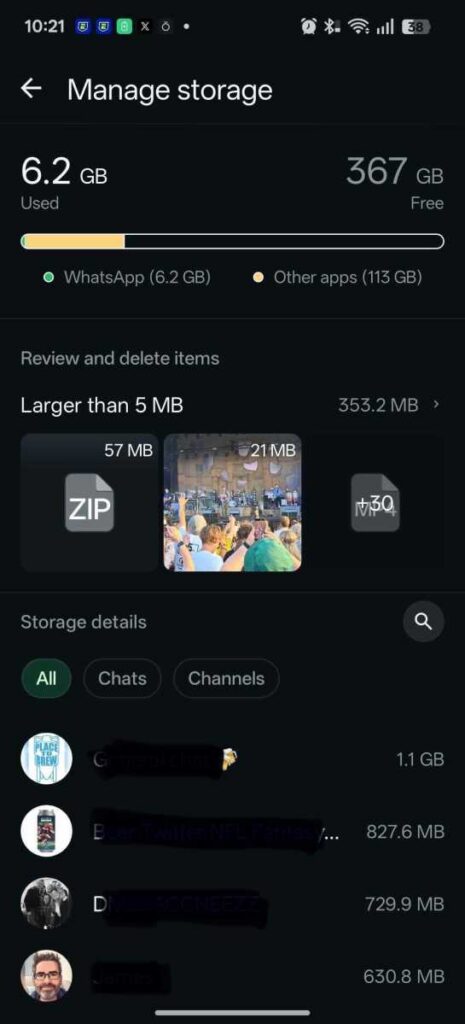
It’s simpler to identify unnecessary media through the app itself. Navigate to:
Settings → Storage and data → Manage storage
Chris Martin / Foundry
Here, you can see which chats are consuming a lot of storage and selectively choose and delete photos, videos, documents, and other media they include. However, please note that both sent and received files are displayed here.
Good to know: When you clear out WhatsApp in this fashion, you’re deleting the local media from your smartphone. Files that have already been sent will not be removed from the recipient’s chat.
2. Downloads: Eliminate forgotten files
Your Downloads folder is another traditional storage offender: anything that was once downloaded from a browser, an email, or another application can sometimes linger, even if the file has been unnecessary for ages. Videos, ZIP files, and installation packages especially consume a significant amount of storage.
Access your smartphone’s file manager and head to the Downloads folder. With Files by Google, for instance, you’ll find it under All Storage → Internal Storage → Download. Organize the files by size and start scanning through those that take up the most space at the top of your list. You can directly delete old and unwanted files from here.
It’s particularly advisable to examine older APK files, ZIP archives, and downloaded videos. Documents and images also tend to pile up here over time, leading to a continually expanding Downloads folder.
3. Remove offline content within the appropriate app
Streaming and navigation apps can likewise use a substantial amount of storage. If, for instance, you download films, music, podcasts, or maps for offline access, you may quickly amass several gigabytes of data here.
You should delete such data directly within the respective app whenever possible. In Google Maps, for instance, you can check and eliminate downloaded offline maps under Profile picture > Offline maps. Likewise, in streaming and podcast applications, you’ll typically discover the stored content in the sections for downloads or offline materials.
Chris Martin / Foundry
It’s also beneficial to check Settings → Storage. There, Android highlights which data categories are occupying the most space. This enables you to target the largest storage culprits, rather than deleting files indiscriminately.
But keep this in mind: Offline content isn’t inherently unnecessary. Only remove it if you no longer require local access without an internet connection.
Three file managers available for Android
If you’re looking to manage files beyond your smartphone’s built-in app, you’ll find a variety of file managers in the Play Store. Here are three options tailored to different requirements:
1. Files by Google: A user-friendly option
Files by Google is pre-installed on many Android devices. The application provides a clear view of files, a search function, and sorts files by size, enabling you to quickly identify and delete large downloads or other space-consuming files.
Additionally, Files by Google can recommend duplicate files and unnecessary data for removal. The app is free of ads and, at less than 20MB, is fairly lightweight.
2. Cx File Explorer: For enhanced overview
Cx File Explorer targets users desiring more control over their files. Besides offering access to both internal and external storage, the app features a graphical storage analysis tool that simplifies identifying and managing large data amounts. It can also integrate cloud storage and network shares.
3. Total Commander: Multifunctional file manager for experienced users
Total Commander serves as the Android version of the renowned Windows file manager. This app utilizes a two-pane interface and provides, among other features, search capabilities, batch processing, ZIP support, and accessibility to FTP, SFTP, LAN, and cloud storage. It’s free from ads and offers far more functionalities than needed for occasional organization. Users who prefer managing files on their smartphones in detail similar to PC operations will find a wealth of advanced options here.
Cleaner apps – Are they necessary?
The straightforward answer is no. We recommend steering clear of so-called ‘cleaning’ apps that promise to automatically erase system and cache files. Android handles app caches autonomously. You should also refrain from manually clearing folders like Android/data: access to these is restricted in modern Android versions.
Conclusion: Recharge storage with just a few taps
If your Android storage is dwindling, it’s advisable to start by searching for large user data files. WhatsApp media, downloads, and offline content are ideal starting points. Remove only what you no longer require – keeping protected app and system folders intact.
Summary: Storage Space – The Ultimate Challenge?
So there you have it, folks! Keep your devices running efficiently by clearing up some space. Don’t let your phone be bogged down by unnecessary clutter. Eliminate those space invaders and enjoy a smoother experience!
