
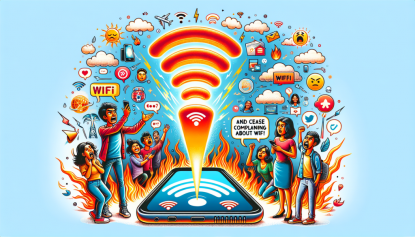

One nifty feature your phone offers nowadays is the ability to transform into a mobile hotspot, essentially allowing you to share your phone’s data with other devices that are desperate for Wi-Fi, such as laptops, tablets, or your friend’s phone who has run out of data while trying to binge-watch TikToks at the pub.
It doesn’t matter if you’ve got one of the top Android devices or you’ve mistakenly splurged on the fanciest iPhone. Here’s how to switch your phone into a Wi-Fi hotspot faster than you can ask, “Eh, where’s the Wi-Fi?”
So, What Exactly is a Mobile Hotspot?
Basically, a mobile hotspot turns your smartphone into a Wi-Fi source, distributing internet access to all nearby gadgets. It’s super useful when you’re out and about, working from some sketchy café devoid of Wi-Fi or, like me, attempting to finish work while someone monopolizes the broadband at home, getting lost in Netflix. You’d think I’d get some quiet time after 5 PM, right? Think again.
Setting Up a Mobile Hotspot on Android (If You’re Wise)
No need to fret; it’s not complicated. Here’s how to make your Android phone pull its weight:
Step 1: Kick Things Off
Fire up the **Settings** app on your Android. Not WhatsApp. Settings.
Step 2: Search for Connectivity Stuff
Navigate to **Network & Internet** (or something similarly techy). Depending on your phone’s price, it might be labeled **Connections** or **Wireless & Networks**.
Step 3: Find the Special Option
Seek out **Hotspot & Tethering**. Give it a tap. Don’t overcomplicate it. You’ll see choices like ‘Wi-Fi hotspot,’ ‘USB tethering,’ and ‘Bluetooth tethering.’ Honestly, just stick to Wi-Fi unless you fancy troubleshooting via Bluetooth.
Step 4: Flip It On, You Star!
Toggle the switch for **Wi-Fi Hotspot** to activate it. Consider giving your hotspot a decent name (None of that ‘John’s iPhone’ nonsense – get creative!) and set a solid password. Don’t be the person who uses ‘12345678’ for a password. That’s just begging for trouble.
Step 5: Personalize Your Hotspot Like an Expert
If you’re a bit tech-savvy, play around with the settings. You can rename the network, set a strong password (seriously, your dog’s name is not sufficient), and ensure the security type is set to **WPA3** (if your phone isn’t ancient).
Step 6: Connect the Other Devices
On any device you want to connect – be it a laptop, tablet, or your friend’s phone – find your hotspot in the Wi-Fi settings, tap it, and input the password.
Seriously, watch your data usage unless you’re keen on a nasty surprise when the bill rolls in. Tethering can consume your data quicker than you might think, particularly if you’re streaming, gaming, or doing something outrageous like downloading 4K films.
If You’re with Team iPhone, Here’s Your Guide
Look, I’m not critiquing if you own an iPhone. Maybe you enjoy paying more for things; we all have our preferences. But here’s how to set it up on Apple’s sleek device:
Step 1: Dive into Settings Like a Champ
Launch **Settings** on your iPhone. Simple, right?
Step 2: Activate Mobile Data, You Trendsetter
Tap **Mobile Service**, then enable **Mobile Data**. It’s pretty standard—let’s move on.
Step 3: Turn On Hotspot Magic
Now scroll down and hit **Personal Hotspot**. Enable it by tapping **Allow Others to Join**. You’re essentially sharing free Wi-Fi with those nearby – for a price, of course (ask them to buy you a drink).
Step 4: Name & Secure Your Hotspot
Your iPhone will have a default name, likely something dull like ‘John’s iPhone’. You can change the **Wi-Fi Password** to something better rather than Apple’s random gibberish. Make sure it’s something your friends can recall after a few drinks.
Step 5: Connect Your Devices
On any gadget you want to get online, find your iPhone’s hotspot in the Wi-Fi settings, tap it, and enter the password. Voila, you’re good to go.
Just a heads-up, mate: iPhones have a tendency to drain faster than a cheap battery, so keep it plugged in while acting as a hotspot. And don’t come moaning to me if you hit your data cap.
If you want to sidestep the heartbreak of running out of data because your friend spent all night on YouTube, consider checking out some reliable mobile networks. I suggest looking into the top mobile phone networks in the UK. Don’t say I didn’t give you a heads-up.
**Summary** – Can’t Find Wi-Fi, Huh?
There you have it, you slacker. If you find yourself somewhere without Wi-Fi and can’t be bothered to move – or if someone’s monopolizing it for “Love Island” – simply transform your phone into a hotspot and get back online. If you’re still scratching your head after this straightforward guide… buddy, maybe you should resort to carrier pigeons.
GadgetLad signing off.